

Opening a support ticket with the Information and Communication Technology Coordination or the IT team is the official channel for requesting technical support regarding the institution’s technology services and resources. Through this service, users can report issues and request equipment maintenance, system support, network access, configuration changes, and other services. Submitting a ticket with the correct information enables the responsible team to analyze the request, track its progress, and provide a solution more quickly and efficiently.
Step 1: Log in to SUAP
The first step is to access SUAP and log in using your student ID and password. Then, simply select the “Abrir Chamado” option in the Service Center.
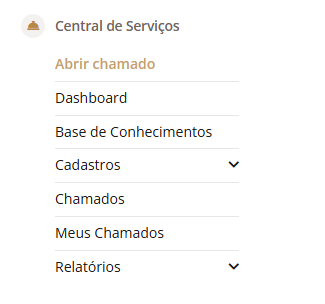
344
Step 2: Select the service area
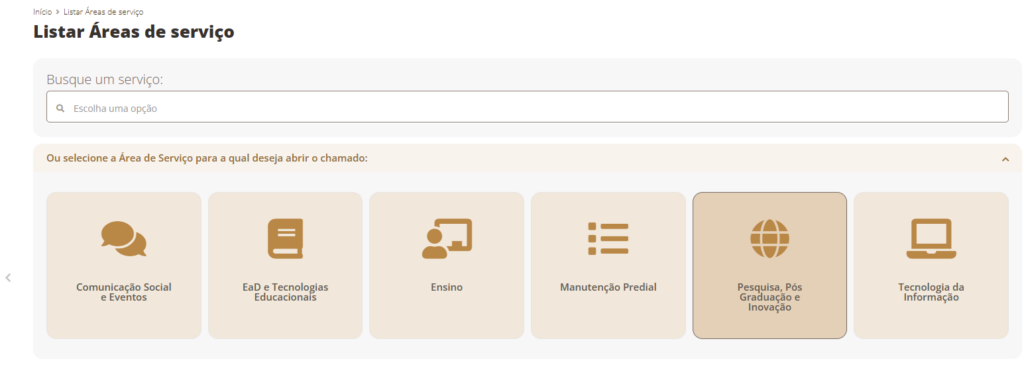
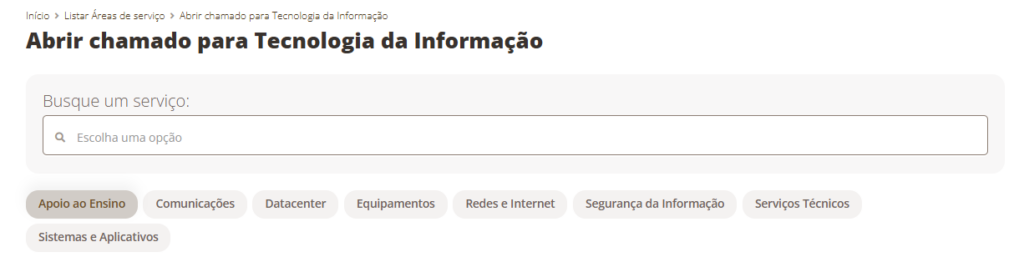
Once on the service area screen, click “Information Technology” and select the topic that best fits your request from the list below.
- Teaching
- Support
- Communications
- Data Center
- Equipment
- Networks and Internet
- Information Security
- Technical Services
- Systems and Applications
Step 3: Fill out the support ticket
When accessing the ticket submission form, follow the guidelines below to ensure faster service.
- Describe the request in detail: state what is happening, when the problem started, what procedures were performed before the issue occurred, whether there is an error message, and how frequently the problem happens.
- Provide the asset tag number: this is required whenever the request relates to institutional equipment such as a desktop computer, laptop, printer, monitor, etc.
- Provide the service location: specify exactly where the equipment is located or where the service should be performed (ex: main building / room 302).
- Indicate your availability: if on-site service or remote access requiring user participation is necessary, state the days and times you will be available.
- Attach evidence: to facilitate diagnosis, attach screenshots, error messages, related documents, and photos of the issue.
Below is a sample form to help you correctly open your support ticket.
Description:
[Describe the problem or request in detail]
Asset Number:
[Asset number]
Location:
Building: [Building name]
Room: [Room number or identification]
Availability:
[State the days and times you will be available]
Attachments:
[Screenshots, images, links to cloud-based drivers, if any]
Did you find information that could be improved, or is there a tutorial missing? You can suggest the creation of new content via the DEAD/ZL Service Center in SUAP by opening a ticket of the type “Request the production of a tutorial for the Help Center.” If you have questions about how to open a ticket, please consult: https://ajuda.ead.ifrn.edu.br/como-abrir-um-chamado-para-servicos-e-aplicativos/.
